Creating a Group Alarm Rollup
Important: Unless specifically called out, this procedure assumes that all affected services are on the same site.
The following procedure explains a basic workflow for creating a group alarm rollup. Creating a group alarm rollup depends in large part upon your specific needs, the complexity of your system, and other variables. Be sure to have a clear idea of what purposes your group alarm rollup will serve before you start to create it.
Creating an alarm rollup is similar in many ways to creating an averaging rollup or a totalizing rollup, but there are some significant differences. The following procedure focuses on those differences. If you want to create a group averaging or totalizing rollup, see Creating a Group (Average or Total) Rollup.
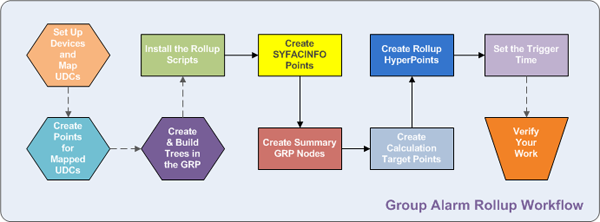
The following image shows a simplified group alarm rollup creation workflow:
|
Group Alarm Rollup Creation Workflow Example |
For more information, see the following subsections below:
- Before You Begin
- Install the Group Rollup Scripts
- Create a Summary Group Node
- Create SYFACINFO Points
- Create an Alarm Calculation Target Point
- Create an Alarm Rollup HyperPoint
- Set the Rollup Trigger Time
- Check Your Work
For information about creating groups, see Group Manager Utility.
1. Before You Begin
To create a group alarm rollup, meet the preliminary requirements described in the Creating a Group (Average or Total) Rollup subsection Before You Begin.
When you are finished fulfilling preliminary requirements, proceed to Install the Group Rollup Scripts.
2. Install the Group Rollup Scripts
To install the group rollup scripts, meet all of the requirements described in the Creating a Group (Average or Total) Rollup subsection Install the Group Rollup Scripts.
When you are finished installing the group rollup scripts, proceed to Create a Summary Group Node.
3. Create a Summary Group Node
To create a summary group node, meet all of the requirements described in the Creating a Group (Average or Total) Rollup subsection Create a Summary Group Node.
When you are finished creating a summary group node, proceed to Create SYFACINFO Points.
4. Create SYFACINFO Points
To roll up alarms, you must create a special point for each remote device facility for which you want to roll up alarms. This is not the same thing as creating a point for a specific data item, like CO, within a remote device facility. The special point uses the UDC called SYFACINFO. Create a point just as you normally would, but type SYFACINFO in the Uniform Data Code field under the General page in the PNT Editor on a remote device facility-by-remote device facility basis for each remote device facility from which you want to collect alarm data.
Note: If a leaf node remote device facility is not assigned a SYFACINFO point in the PNT, it does not know it is part of a group alarm rollup and its alarms are not included. However, the remote device facility might have points for standard UDCs that alarm independent of a group alarm rollup if they are configured to do so. For instance, you might not create a SYFACINFO point for a remote device facility, which means no group alarm rollup will occur with this remote device facility. However, you might still create a point for the same remote device facility that uses the UDC called CO. An alarm specific to only the UDC called CO could be set for the remote device facility. For more information, see Alarms.
When you are finished creating SYFACINFO points for all relevant remote device facilities, proceed to Create an Alarm Calculation Target Point.

5. Create an Alarm Calculation Target Point
To create an alarm calculation target point, meet all of the requirements described in the Creating a Group (Average or Total) Rollup subsection Create a Calculation Target Point with the following exceptions:
- On the General page in the PNT Editor, enter SYFACINFOR in the Uniform Data Code field. Notice that this UDC has an R at the end; it is not the same as the SYFACINFO UDC described in step 4 above. Create only one SYFACINFOR calculation target point per remote device facility.
- On the General page in the PNT Editor, set the Point Type to Enumeration Input.
- On the Enumeration page in the PNT editor, go to the Conversion Table field and enter FACINFO. The normal value of a group rollup is 0 - Normal. If the group alarm rollup finds a leaf node point with a value of 1 - Warnings Exist or 2 - Alarms Exist, the current value of the group alarm rollup is set to Warnings Exist or Alarms Exist.
When you are finished creating an alarm calculation target point, proceed to Create an Alarm Rollup HyperPoint.
6. Create an Alarm Rollup HyperPoint
To create an alarm rollup HyperPoint, meet all of the requirements described in the Creating a Group (Average or Total) Rollup subsection Create a Rollup HyperPoint with the following exceptions:
- On the General page in the PNT Editor, enter SYFACINFOR in the Uniform Data Code field. Notice that this UDC has an R at the end; it is not the same as the SYFACINFO UDC described in step 4 above. Create only one SYFACINFOR alarm rollup HyperPoint per remote device facility.
- On the Point reference page in the PNT Editor in the CygNet point reference area, use the Type drop-down menu to select Group SYFACINFO Rollup. Group SYFACINFO Rollup represents the alarm Type option.
When you are finished creating an alarm rollup HyperPoint, proceed to Set the Rollup Trigger Time.
7. Set the Rollup Trigger Time
Meet all of the requirements described in the Creating a Group (Average or Total) Rollup subsection Set the Rollup Trigger Time.
When you are finished setting the rollup trigger time, proceed to Check Your Work.
8. Check Your Work
Once you have created and configured all required summary GRP nodes, SYFACINFO points, alarm calculation target points, and alarm rollup HyperPoints, check the results of your work to ensure that the roup alarm rollups are operating correctly. Perform the two steps listed below.
Note: There might be additional ways to check your work besides those provided below.
To Double-Check with a Manual Alarm
- Using CygNet Explorer, open the appropriate UIS.
- Locate a subset of UDC/facility combinations that you know are supposed to be aggregated by the group alarm rollup steps above.
- Make a manual change to the current value of one of the non-SYFACINFO remote device facility points that you know will put that point into alarm. The non-SYFACINFO point must be a point that belongs to a remote device facility that uses a SYFACINFO point. For instance, if you created a standard point that collects CO information for a remote device facility that also includes a special SYFACINFO point, open the CO point's properties and edit its value to put it in an alarm state.
- Refresh your UIS to see the latest current value results.
- Go to the SYFACINFOR alarm calculation target point and check to see if the Value changed from Normal to either Warnings Exist or Alarms Exist. If a child point is in alarm but the SYFACINFOR calculation target point is not, your rollup is not working.
To Double-Check the SUCCESS Value in HSS
- Using CygNet Explorer, open the appropriate HSS.
- Locate the SYFACINFOR alarm rollup HyperPoint that you know is supposed to calculate the alarm you created above.
- Refresh your HSS to see the latest results.
- Check the SYFACINFOR alarm rollup HyperPoint's Value column. If the value in the column shows "SUCCESS", your group alarm rollup HyperPoint is operating correctly. If another value is displayed, see Error Messages to troubleshoot the issue.
For information about troubleshooting groups and group rollups, see Troubleshooting.
If you are satisfied with the results of your rollups and tests, consider fine-tuning your rollups by using filters. For more information, see Filtering a Group Rollup.

